Connect to Crisp - Documentation

Connect to Crisp

Connect your Crisp Account to start receiving messages

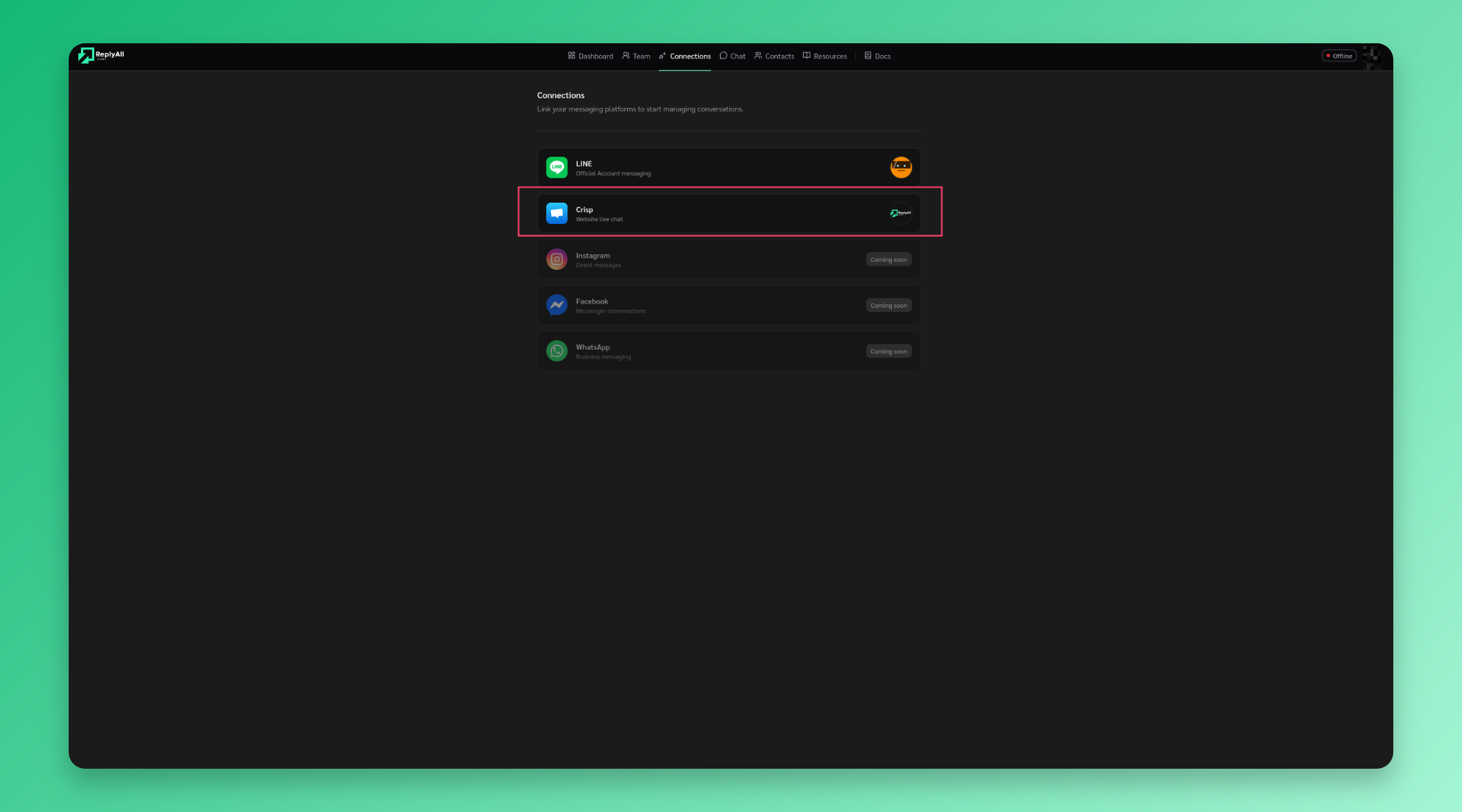
Adding Crisp to your connections

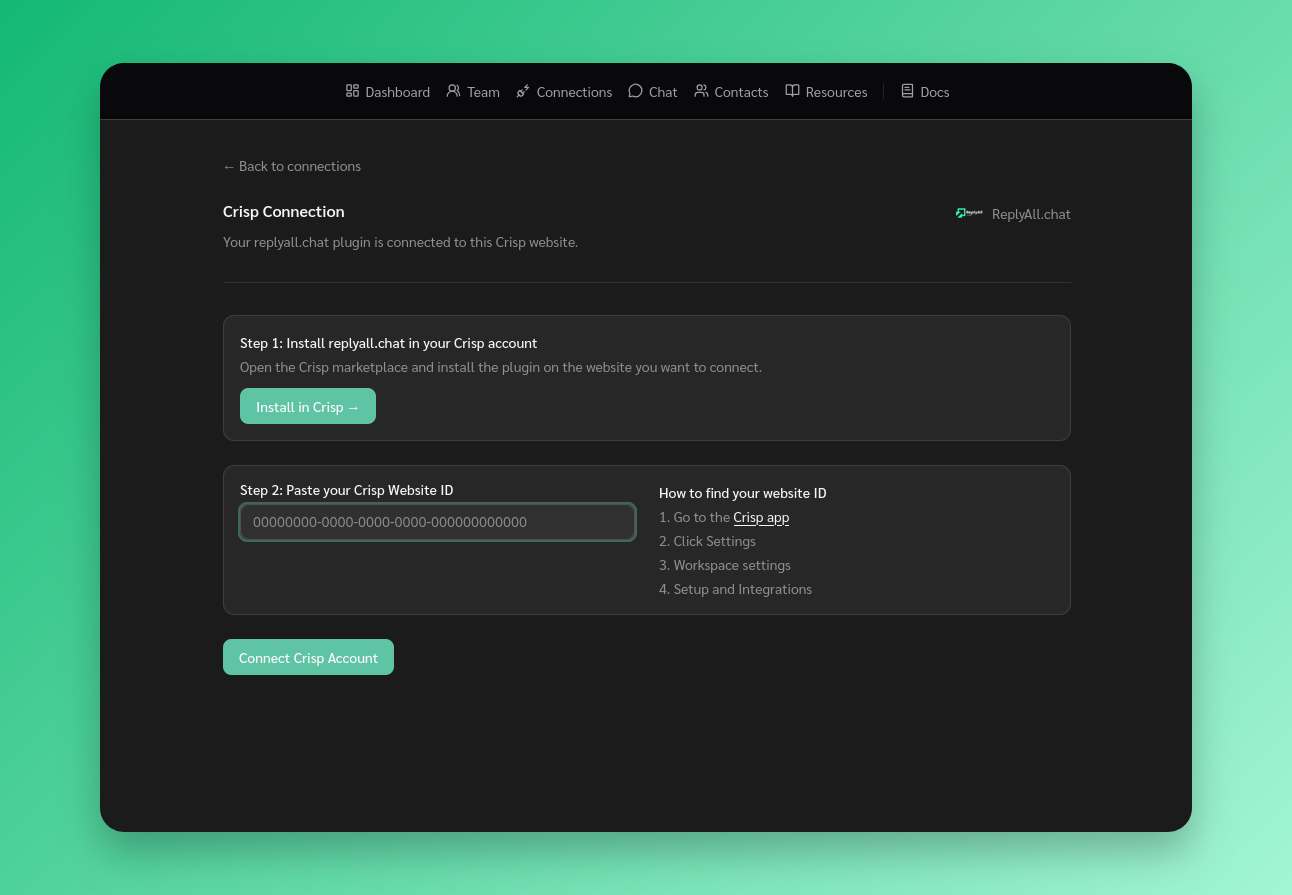
Important: Ensure the website ID belongs to the same crisp account where you have installed the crisp plugin for ReplyAll.chat. Otherwise you will not be able to send or recieve messages from your Crisp connection.

Connections page for Crisp

Install Crisp plugin

Once on the connections page on clicking Install Plugin, you’ll be redirected to you crisp account to install the ReplyAll.Chat crisp plugin. This allows us to send and recieve messages on your behalf.

Install crisp plugin

Get website ID from Crisp

Go to Crisp.Chat, click on Settings > Workspace Settings > Setup & Integrations to find your Website ID.
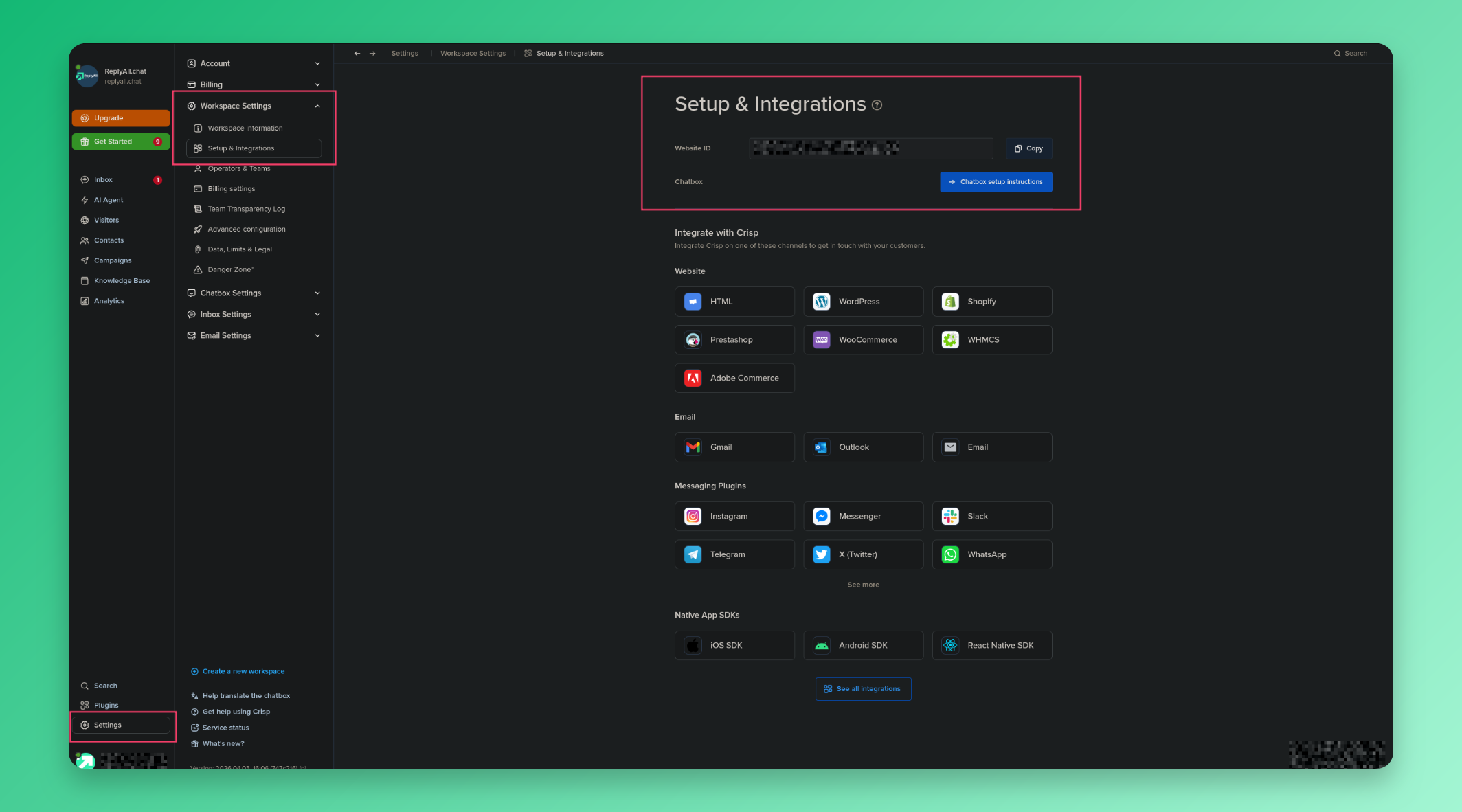
Copy website id from crisp

Stay Updated

Get the latest updates on new features and components.

No spam, ever. Unsubscribe anytime.

The statistics and results shown on this site are illustrative and not a guarantee of your results. Your outcomes will vary depending on your audience, team size, effort, and how you use the software. We do not guarantee that you will increase revenue, reduce costs, or achieve any specific business outcome. Individual experiences mentioned are for informational purposes only.

© 2026 ReplyAll. All rights reserved.
Preview