Migrate LINE Chat History
Bring your existing LINE conversations into ReplyAll.chat
How it works
Upload your LINE chat history ZIP to import conversations. When a contact messages you, their past history appears automatically.
You can provide note examples so the AI generates per-contact notes matching your style.
Export your chat history from LINE
- Go to chat.line.biz
- Open Chat settings then Basic
- Click Chat history backup to download the ZIP
Do not rename the file. Upload it exactly as received from LINE.
Upload and migrate
- Go to the Connections page from the sidebar
- Open your LINE connection
- Scroll to Migration Tools
- Upload the ZIP file
- Optionally, paste note examples so the AI knows what style to generate
- Click Migrate
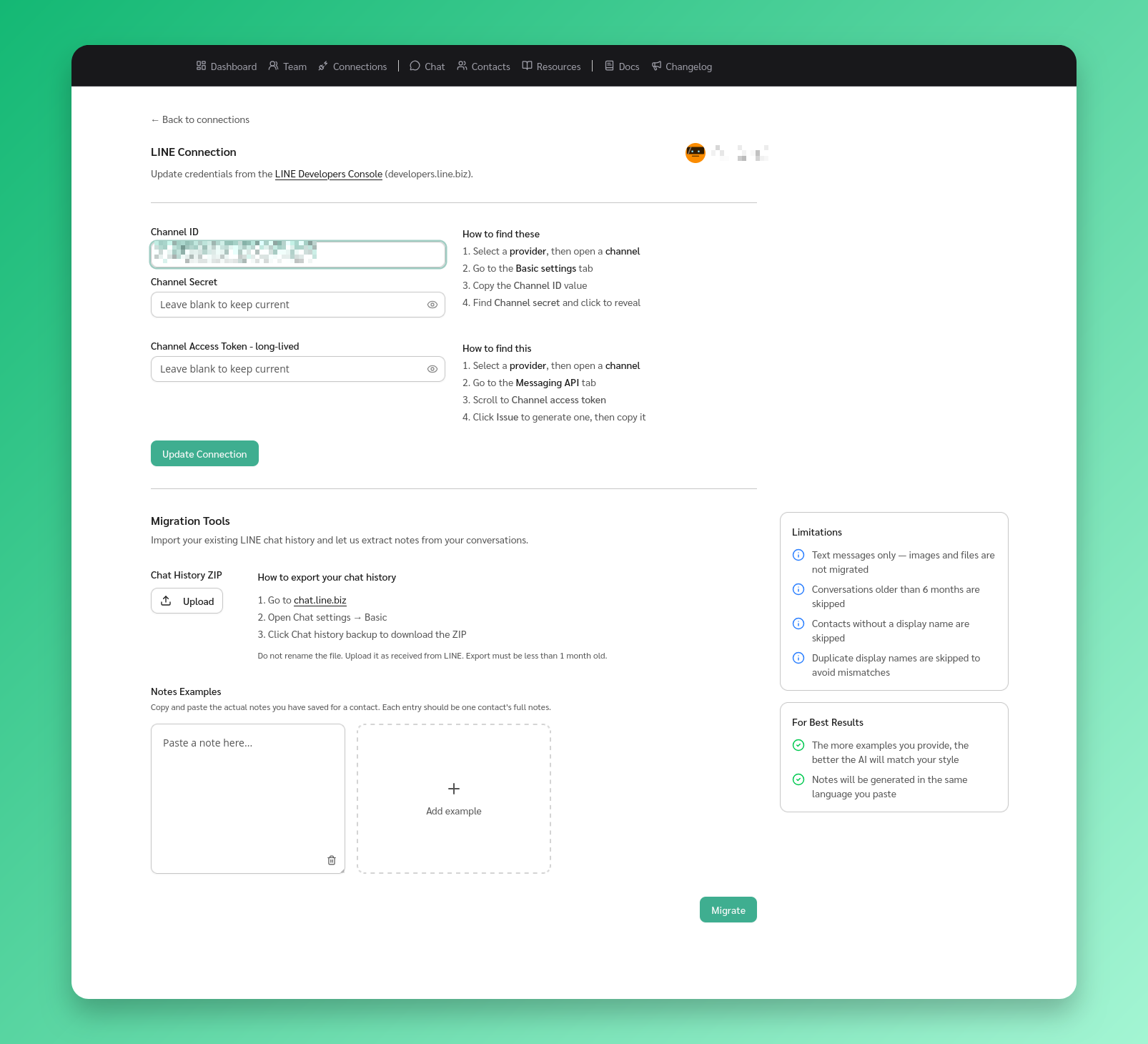
The migration runs in the background. History appears when each contact sends their first message.
AI-generated notes
If you provide note examples, the AI generates notes for each contact based on their chat history. Notes match the language and style of your examples.
- More examples = better style matching
- AI-generated notes are marked so your team knows they were inferred
Limitations
- Text messages only — images and files are not migrated
- Conversations older than 6 months are skipped
- Contacts without a display name are skipped
- Duplicate display names are skipped to avoid mismatches
- Migration can only be done once per connection
- The export must be less than 1 month old