Connect to LINE
Connect your LINE Official Account to start receiving messages
Enable Messaging API
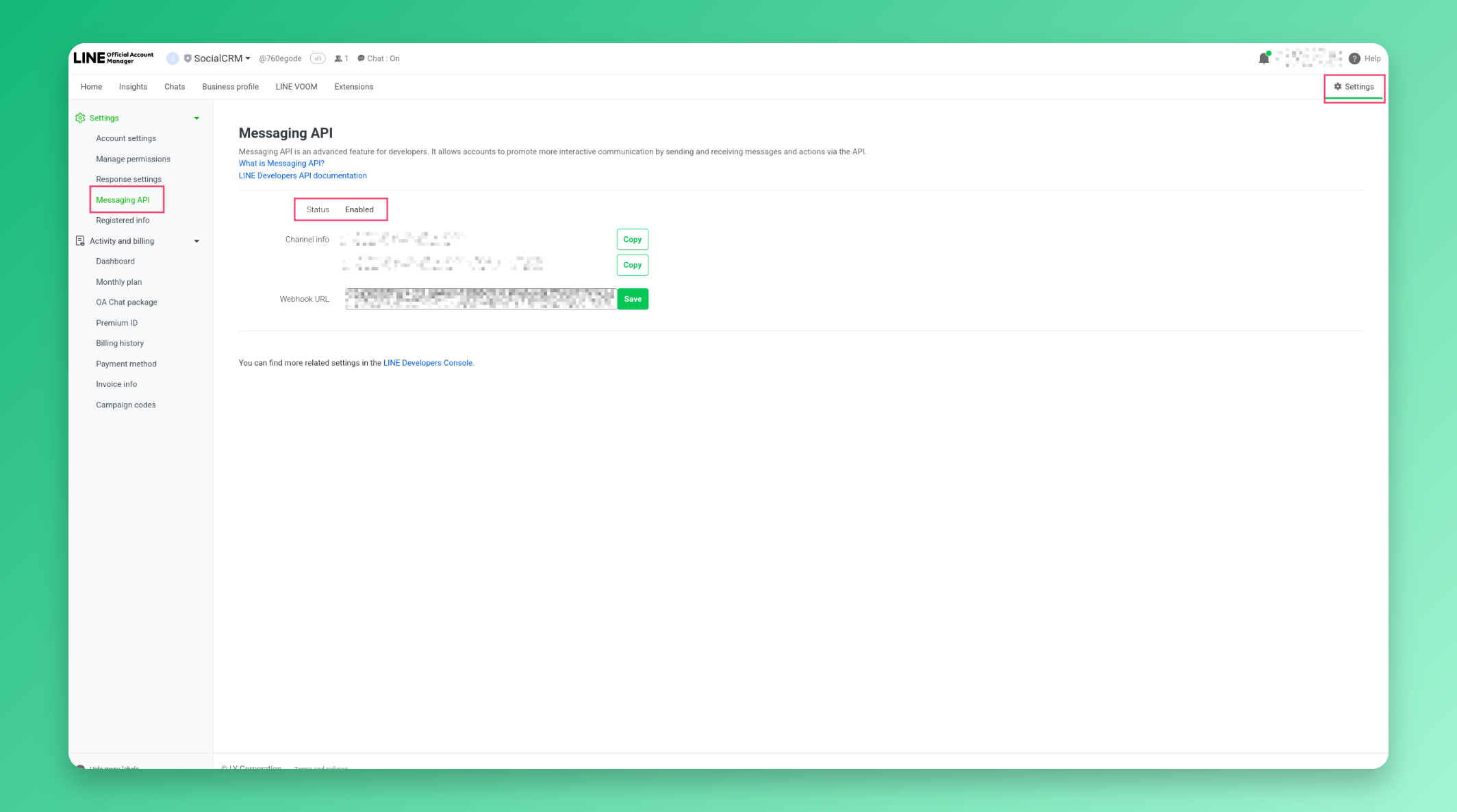
Go to LINE Official Account Manager and sign in. Under Settings → Messaging API, make sure the status is Enabled.
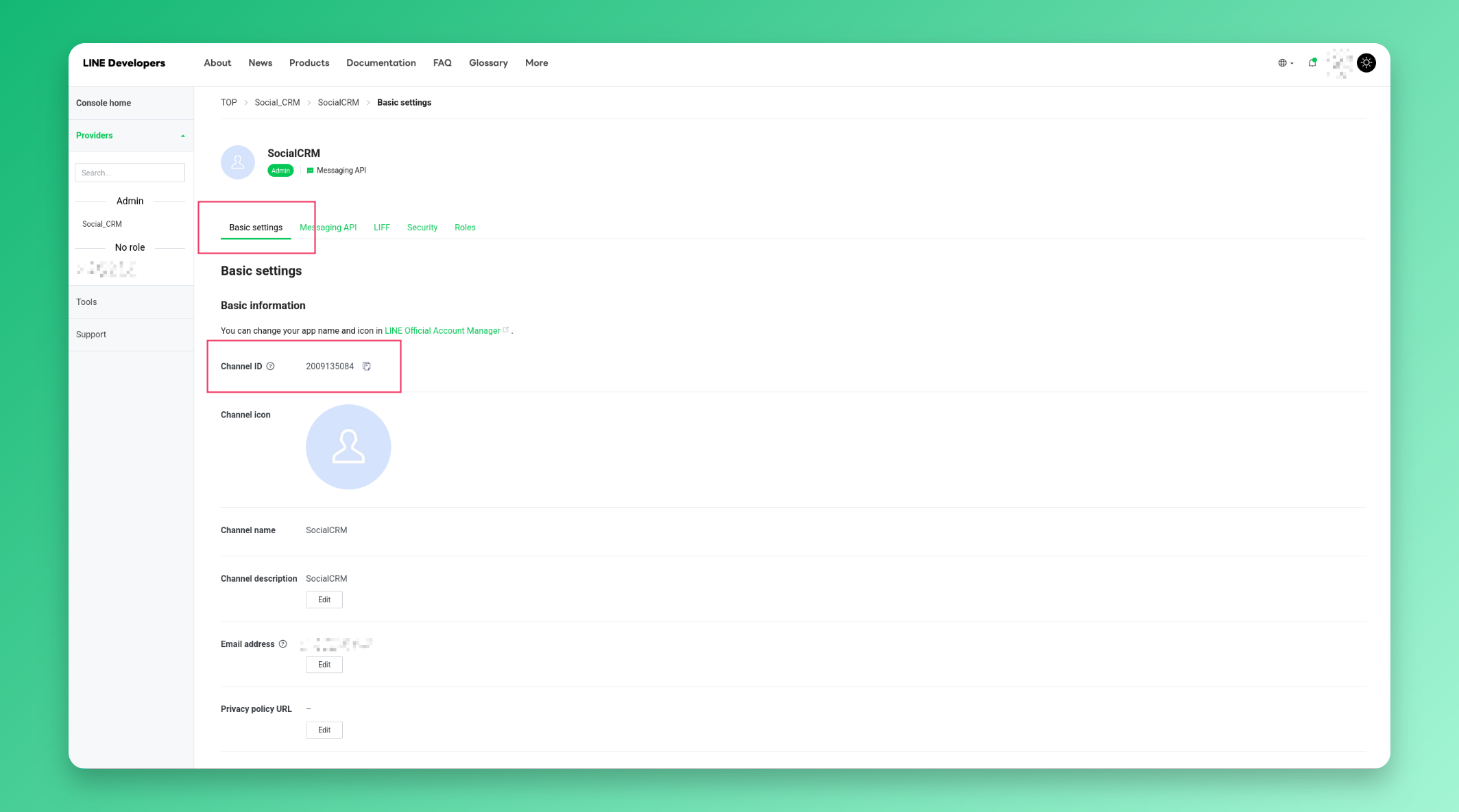
Copy Channel ID
Go to LINE Developers Console, select your provider and channel, then open the Basic settings tab. Copy the Channel ID.
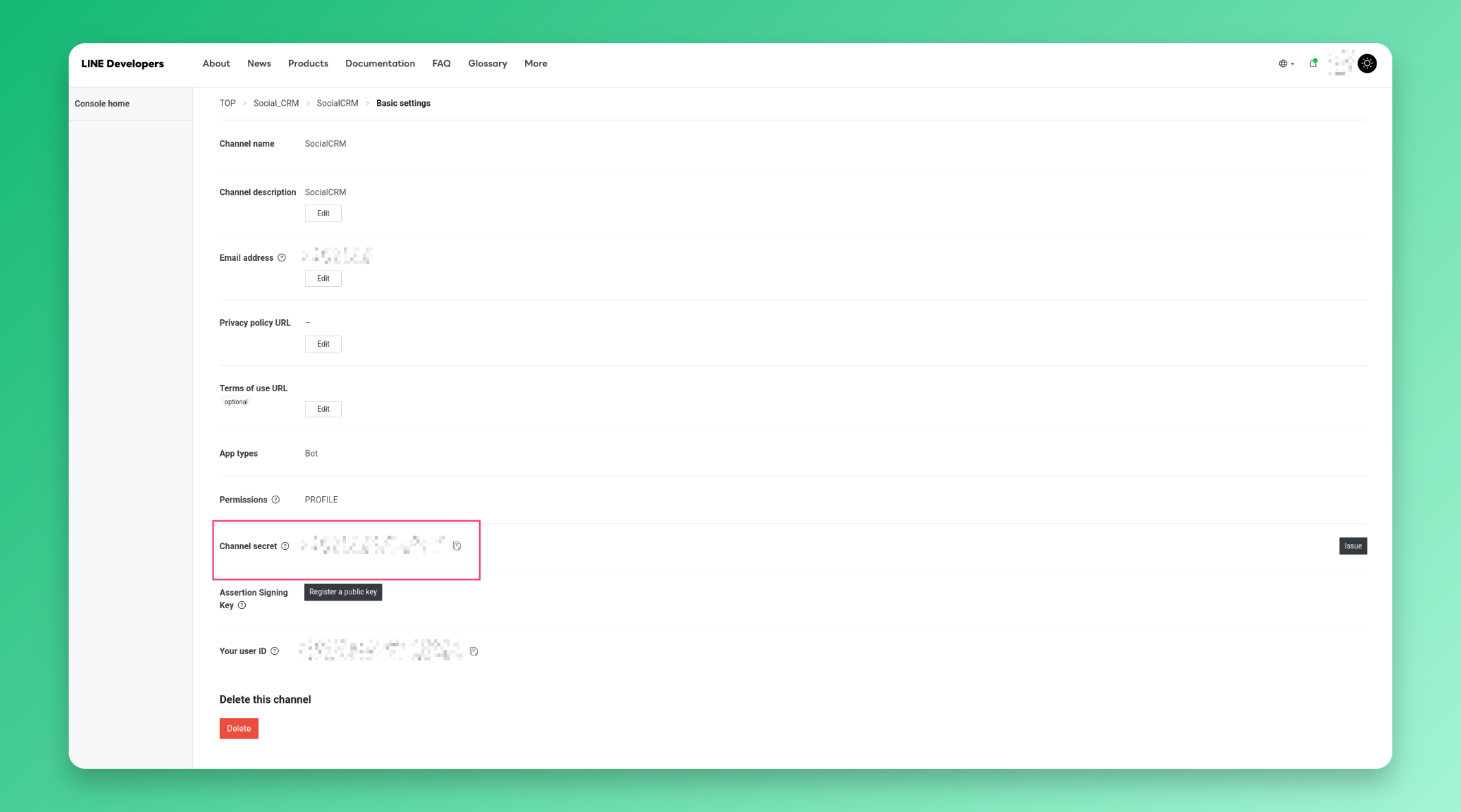
Copy Channel Secret
Scroll down on the same Basic settings page and copy the Channel secret.
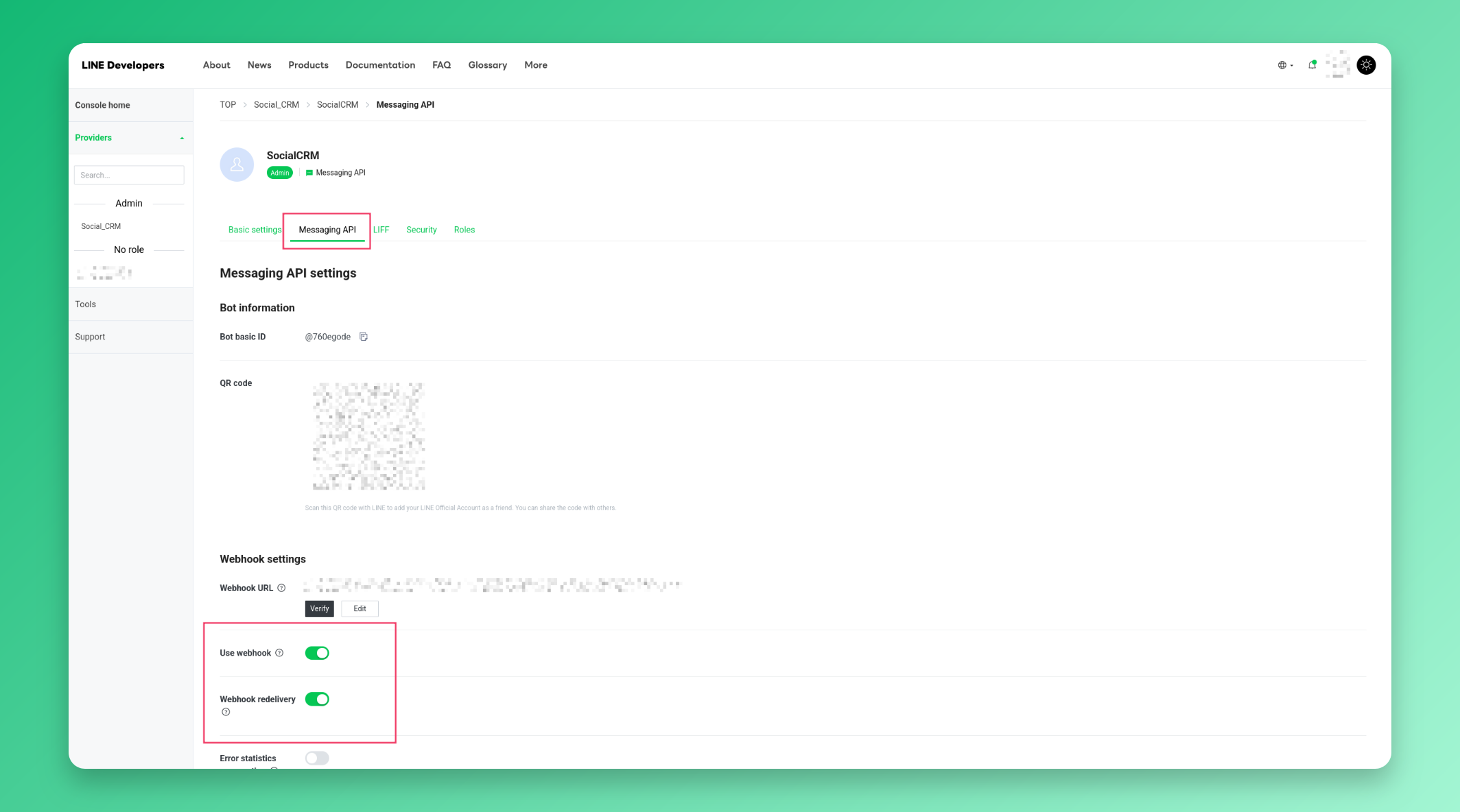
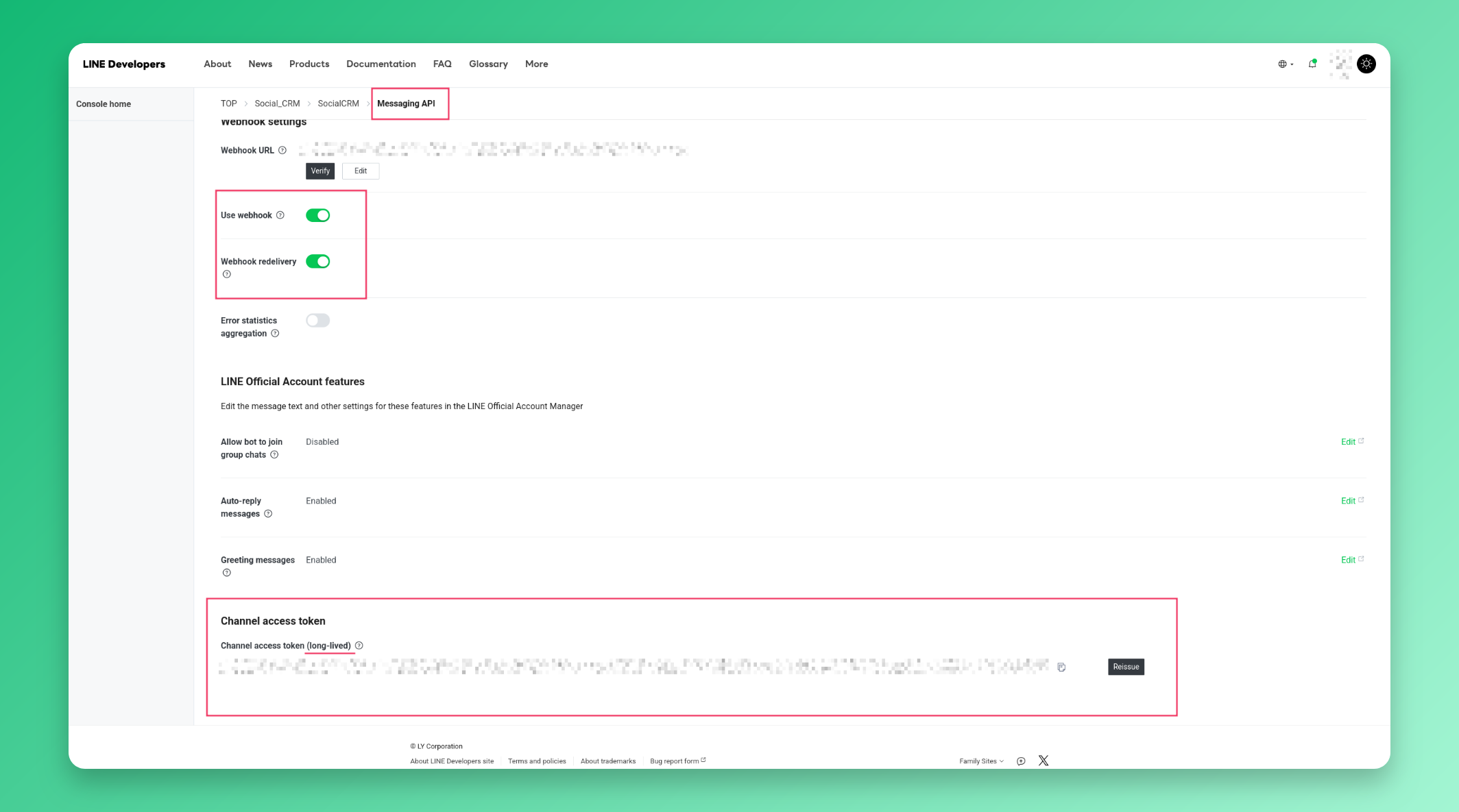
Enable webhooks
Switch to the Messaging API tab. Under Webhook settings, toggle on:
- Use webhook
- Webhook redelivery
Copy Channel Access Token
Scroll down on the Messaging API tab to Channel access token. Click Issue if you don’t have one yet, then copy it.
Connect in the app
Go to Connections → LINE, paste your Channel ID, Channel Secret, and Channel Access Token, then click Connect LINE Account.